



How to clone a WordPress site to a local server, without migration plugins
Copy your live site onto a Raspberry Pi and test on that instead. No migration plugins, nothing uploaded to anyone else's website, and every command shown here has been run.
25 minute read lordtime
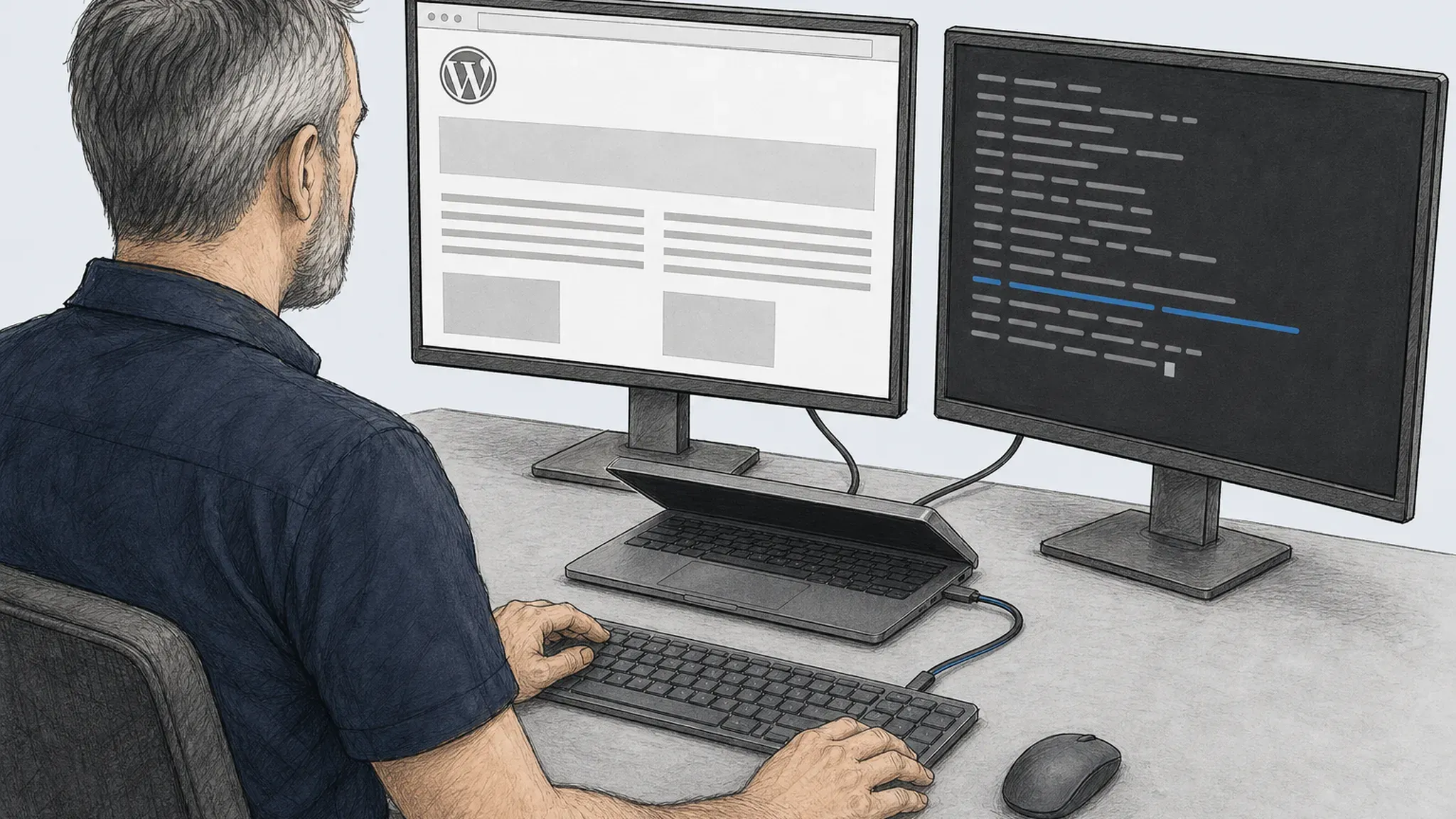
You want to remove a plugin, upgrade PHP or check whether a security fix breaks anything. Right now the only place you can try is the site your customers are using.
Your host’s staging button is not really separate. It usually runs on the same account, with the same credentials, often against the same database server. And it does not tell you whether your backup works.
A local clone gives you an isolated place to test and proves that your backup can be restored. This is how to copy a live WordPress site onto a Raspberry Pi by hand: no migration plugins, and no site data sent to a third-party service. That second rule matters more than it sounds. A database dump contains every customer record and every password hash you hold.
Every command below has been run on a Raspberry Pi 5. Where something broke, it says so.
Step 1: write down what the live site is running
Before copying anything, find out what you are copying. That decides how much the copy is worth.
You want: the WordPress version, the PHP version and its extensions, the database type and version, the character set and collation of every table, the web server, the settings in wp-config.php, any drop-in files, must-use plugins, scheduled jobs, and how big the uploads folder is.
If you have SSH, a few commands get most of it. If you do not, upload a small read-only PHP file and fetch it once. Ours is probe.php, which prints all of the above and never prints a password.
Here is the important part, and it is the mistake in many copy instructions. They tell you to install a fresh WordPress on the target and copy wp-content across. Do not do that. You have just replaced the core files with clean ones, and the core files are exactly what you want to inspect. It also quietly changes the WordPress version. Copy everything, check it, then decide what to delete.
| Part of the stack | Must match | Can differ | How to check |
|---|---|---|---|
| WordPress version | Yes | No | wp-includes/version.php |
| PHP version | Minor version too — 8.2 is not 8.4 | Patch level | phpinfo() or php -v |
| PHP extensions | Anything the site uses | The rest | get_loaded_extensions() |
| Database engine and version | Close enough to import | Exact patch | SELECT VERSION() |
| Character set and collation | Yes | No | information_schema.TABLES |
| Web server | If it uses .htaccess, yes | Otherwise no | Ask the host |
| Rewrite rules | Yes, copy them as they are | No | The site's own .htaccess |
| wp-config constants | Yes | Keys and salts | Read the file |
| Uploads | Yes | No | Compare file counts |
Step 2: set up the Raspberry Pi
A Pi 5 is enough for testing a typical single WordPress site. The database benefits from memory more than PHP does, so prioritise memory over processor speed.
Use an SSD, not an SD card. Databases write constantly and SD cards wear out. The M.2 HAT+ attaches an NVMe drive, and you change the boot order to use it.
Install Raspberry Pi OS Trixie, 64-bit, Lite — you do not need a desktop.
Two things will catch you out if you learned the Pi a few years ago:
sudoasks for a password now. Passwordless sudo was turned off by default in the April 2026 update./tmpis held in memory. Debian 13 keeps it in a tmpfs, limited to half your RAM by default. Unpack a 4 GB dump there on an 8 GB Pi and the machine falls over. Use a normal folder on the SSD.
Then: fixed IP, SSH keys only, no port forwarding from your router, firewall on. That is not tidiness. This box is about to hold your customers’ personal data.
Step 3: install Apache, PHP and MariaDB by hand
Apache rather than nginx, and for a reason worth stating. Many WordPress hosts use Apache with .htaccess. If the live site’s rewrite rules, redirects or access rules live in that file, an nginx copy ignores them. You would be testing a different site. Use nginx if the live site uses nginx.
Install the web server, the database and PHP with the extensions WordPress needs. One package deserves naming:
sudo apt install php8.4-mysqlPHP’s PDO is often installed without the MySQL driver. Depending on the code, the failure may say could not find driver or complain about a PDO MySQL constant. Install the driver explicitly.
Match the live site’s PHP minor version. Debian 13 ships PHP 8.4. If the live site runs 8.2 or 8.3, install that instead from Sury’s repository, which Debian’s own wiki documents. It carries every supported PHP branch for current Debian and Ubuntu, which is the usual way to run a version the distribution does not ship.
Copy the live site’s PHP settings rather than using the defaults: memory_limit, max_execution_time, upload_max_filesize, post_max_size.
For the web server, one trick saves repeat work. Apache can map hostnames to directories automatically. Save this as /etc/apache2/sites-available/local-clones.conf:
<VirtualHost *:80>
    ServerAlias *.clone.test
    UseCanonicalName Off
    VirtualDocumentRoot /var/www/sites/%1/
    <Directory /var/www/sites>
        Options FollowSymLinks
        AllowOverride All
        Require all granted
    </Directory>
</VirtualHost>
Then enable Apache’s vhost_alias module (and rewrite if the site needs rewrites), enable the site, and reload:
sudo a2enmod rewrite vhost_alias
sudo a2ensite local-clones
sudo systemctl reload apache2
Now every folder you create under /var/www/sites/ gets its own hostname, and AllowOverride All means the site’s own .htaccess is honoured. Adding a second copy becomes mkdir. You need a local DNS resolver that maps *.clone.test to the Pi. A hosts file is fine for one name, but it cannot express a wildcard; use a resolver such as dnsmasq, AdGuard Home or Pi-hole for many copies. Do not use .local: it is reserved for multicast DNS.
Last: create the database naming the character set and collation explicitly, matching the live site. Do not accept the default. Step 5 explains why.
Step 4: get the files and database off the live server
There are three routes. Take the first one your hosting allows, because they are in order of preference by a wide margin.
If you have SSH
Dump the database on the server and stream it straight down, then copy the files with rsync. Use mariadb-dump on MariaDB and mysqldump on MySQL; the example below assumes MariaDB.
ssh [email protected] 'umask 077; cat > "$HOME/.wp-clone.cnf"' <<'EOF'
[client]
user=liveuser
password=thepassword
EOF

ssh [email protected] \
  'mariadb-dump --defaults-extra-file="$HOME/.wp-clone.cnf" \
     --single-transaction --quick --hex-blob --no-tablespaces \
     --routines --events --triggers --default-character-set=utf8mb4 livedb | gzip -6' \
  > database.sql.gz

ssh [email protected] 'rm -f "$HOME/.wp-clone.cnf"'
--defaults-extra-file must come before the other client options, and the temporary file is removed as soon as the dump finishes. Do not put the password on the command line: process arguments can be visible to other processes or users, depending on the host. --single-transaction gets a consistent snapshot without locking transactional tables. Take a checksum afterwards so you can prove the archive arrived intact. If a MySQL 8 client is dumping an older MySQL server, add --column-statistics=0 if it reports a COLUMN_STATISTICS error.
Files come over rsync, which only moves what changed. Our second run moved 118 KB instead of 110 MB.
This route is also the safest, because nothing is written to the live server’s web root at all. No script to upload, none to forget about.
If you have SFTP but no shell
This is normal on managed WordPress hosting. Files come down with the sftp client.
Not with rsync — and this is worth knowing because it is not obvious. rsync runs a copy of itself on the far end, so it needs a shell. On an account with no shell it fails with protocol version mismatch -- is your shell clean?, which reads like a configuration problem and is not one. Use sftp and accept two limits: there are no incremental re-runs, and no server-side excludes, so everything comes down and you delete what you did not want afterwards.
One more: a single unreadable directory aborts the whole recursive download, and sftp gives you no way to skip it.
If the host offers no database export through its panel or phpMyAdmin, the database still needs a script on the server.
If you have neither
Everything goes through a PHP file you upload, run, and delete. Ours is export.php. It writes the database out in batches through PDO, so it never needs exec() and works even where the host has disabled those functions, and it writes the files out in chunks and remembers its place, so it survives the host’s time limit.
If the site is behind Cloudflare
Three things change, and each one costs an hour if nobody warned you.
SSH is not affected — but the domain is. Cloudflare proxies HTTP and HTTPS only, so SSH goes straight to your server. The catch is that an orange-clouded domain resolves to Cloudflare, so ssh example.com does not reach you. Use the host’s own hostname or the real IP address.
Cloudflare gives up on a slow origin after about 100 seconds and returns a 524. So the export has to work in short bursts and remember where it got to, rather than trying to dump everything in one request.
Bot protection answers curl with a challenge page, not your data. Either point straight at the origin address and skip the proxy entirely, or add a firewall rule that skips the one path your script sits on.
Step 5: load the database onto the Pi
gzip -dc database.sql.gz | mariadb --default-character-set=utf8mb4 clonedbThree settings decide whether this takes four minutes or forty: innodb_buffer_pool_size, max_allowed_packet, and whether you wrap the import in a single transaction.
When the import stops with an error
A dump taken from MySQL 8 may contain a collation called utf8mb4_0900_ai_ci. MariaDB does not have it, and the import stops at the first line that mentions it. Replace it as the file streams through, rather than editing a multi-gigabyte file in place:
gzip -dc database.sql.gz | sed -e 's/utf8mb4_0900_ai_ci/utf8mb4_unicode_ci/g' \
    -e 's/ VISIBLE//g' \
    | mariadb clonedb
VISIBLE and INVISIBLE are MySQL-only index keywords and cause the same kind of stop.
The quieter version of the same problem
WordPress does not necessarily use the database’s default collation. On a modern, compatible MySQL or MariaDB server it commonly selects utf8mb4_unicode_520_ci, so core tables can match on both machines and look fine.
What drifts is anything created without a collation being named: a plugin’s own table, or the database you just made by hand. MariaDB 11.8 changed the default character set to utf8mb4 and the default Unicode collation to uca1400_ai_ci, so on a new install those pick up something the live site never used.
So: name the character set and collation when you create the database, and copy DB_CHARSET and DB_COLLATE from the live wp-config.php exactly. Do not add them if the live site does not have them — WordPress’s own documentation warns that adding them to an existing site causes problems.
Then check it worked
Count the tables. Count the rows in the big ones and compare against the live site. Where the engine supports it, CHECKSUM TABLE is a useful additional check. Run the first command on the live server with its own credentials and the second on the Pi:
mariadb -N livedb  -e "CHECKSUM TABLE wp_options, wp_posts"
mariadb -N clonedb -e "CHECKSUM TABLE wp_options, wp_posts"
Matching values are good evidence that those tables match. They are point-in-time checks, not a proof: a live site can change between the dump and the query. Keep the archive checksum too, and investigate any mismatch rather than assuming the restore is wrong.
Step 6: change the domain without breaking anything
This is not a WordPress invention. PHP has a built-in serialize() function that packs an array or an object into a single string, and WordPress reaches for it whenever a setting is not a plain number or string — a database column holds one value, and an option can be a whole array. What serialize() writes records the byte length of every string inside it. A stored option looks like this:
a:1:{s:8:"site_url";s:19:"https://example.com";}Read the last part: a string (s) of 19 bytes, https://example.com. Now replace that with https://wp.local using SQL. You get s:19:"https://wp.local" — a string that claims 19 bytes but holds 16.
unserialize() refuses the whole thing and returns false. Nothing throws an error: WordPress asks for the setting and gets nothing back. Widgets vanish, theme options reset, page-builder layouts go blank, and the cause is nowhere near the symptom.
The fix is to unpack the structure, replace inside it, and pack it back up so every length is recalculated. That is what replace-urls.php does. It also handles nested data, and settings belonging to plugins that are not installed on the copy — those keep their original class names rather than being turned into something WordPress cannot read.
php replace-urls.php --config=/var/www/sites/clone/wp-config.php \
  --from=https://example.com --to=https://clone.dev.local
It writes nothing without --apply. Read the report first.
The one that surprised us
Some plugin settings are stored as JSON in a text column. JSON permits forward slashes to be escaped, and PHP’s default encoder often writes them that way. A URL stored like this reads as:
{"cdn":"https:\/\/example.com\/wp-content\/uploads"}Search that for https://example.com and you will not find it: the slash characters are escaped. A replacement tool that only searches for the unescaped URL silently misses those values.
We only found this by running the tool against a site with a JSON option in it. The unit tests passed; the filter in front of the function was wrong. If you write your own replacement, search for the escaped form as well.
Which local address to use
Two options, and the honest trade-off between them.
The real domain, redirected in your hosts file. Closest to the real thing. Also a genuine risk that one day you will forget which one you are looking at. A hosts file cannot cover wildcard subdomains.
A separate local name, with a full replacement. Slightly less faithful, much harder to confuse. This is the one to use unless you are specifically testing something that depends on the domain name.
Set WP_HOME and WP_SITEURL in wp-config.php as well as changing the database. The database change is what makes the copy behave like the live site; the two constants are the safety net for when it does not.
Local HTTPS. WordPress lists HTTPS as a requirement for every install, so give the copy a certificate. Make a small certificate authority with openssl, issue a wildcard certificate for *.clone.test, and trust that authority on the machines that will use the copy. mkcert is also a reasonable choice where local tooling policy permits it.
Step 7: fix the file paths, which are not URLs
This is the half almost every guide skips, and it is the reason media libraries come up empty on a copy.
The database also holds absolute file paths from the old server: /home/olduser/public_html/.... A URL replacement cannot touch them, because they contain no domain. On your Pi those directories do not exist. Three places matter:
upload_pathin the options table. WordPress uses it exactly as stored when it is absolute. So every upload fails and the media library looks empty, while the files sit on disk untouched._wp_attached_filein post meta. WordPress only adds the uploads directory in front when the value is relative. An absolute one is used as-is and points at nothing.- Plugin settings. Cache directories, log files, import folders, backup destinations, font and CSS output paths. This is where most of them are, and the hardest to find by hand because every plugin names its option differently.
fix-paths.php finds them. It does not need telling what the old path was — it works that out from the data, then reports every old root with a count and the columns holding it, plus which attachment files are actually missing from disk.
php fix-paths.php --config=/var/www/sites/clone/wp-config.php--apply fixes only what has one obviously correct answer: clearing a dead upload_path so WordPress computes its own again, and making absolute attachment paths relative — which is what WordPress expects, and what survives the next move as well.
It deliberately does not touch plugin settings. A plugin’s cache directory might want the new root, might want somewhere else, or might want clearing so the plugin rebuilds it. Only you know which. They are reported with table, column and row.
One thing to check before you blame the copy: if files are reported missing, compare the count against the live site. Some of them were probably already gone.
Step 8: if it is a multisite network
Most of this works unchanged. Per-site tables like wp_2_options are found automatically, and so are per-site uploads under wp-content/uploads/sites/2/.
Three things do not, and the first is genuinely dangerous.
The domains are stored bare. wp_blogs.domain, wp_site.domain and wp_signups.domain hold alpha.example.com with no https:// in front. So a replacement of https://example.com does not touch a single one of them. Give the bare domain as well:
php replace-urls.php --config=/var/www/sites/clone/wp-config.php \
  --from=alpha.example.com --to=alpha.clone.dev.local \
  --from=example.com       --to=clone.dev.local
All pairs are applied at once, with the longest match winning, so listing the subsites first does not clash with the network domain underneath.
DOMAIN_CURRENT_SITE is in wp-config.php. It is a constant in a file, so nothing that rewrites the database can reach it. Edit it by hand.
Old networks store uploads somewhere else. Networks created before WordPress 3.5 keep every site’s files under wp-content/blogs.dir/2/files/ and serve them through PHP. WordPress never migrated those networks, so they are still running. Check the ms_files_rewriting option before assuming the modern layout, or every subsite attachment will look missing.
One practical note if you are using the automatic hostname mapping from step 3: %1 is only the first label of the hostname. alpha.live.clone.test and alpha.clone.clone.test both resolve to the same directory. Two networks on one machine need their subsites to differ in that first label, not just in the network domain.
Step 9: cut the copy off from the internet
You copied the settings, so you copied the mail configuration, the API keys, the webhooks and the scheduled jobs. Left alone, a fresh copy will email real customers, charge real cards in a test order, and clear a real CDN cache.
Mail. If the copy uses PHP-FPM, turn off sendmail in its pool configuration. With mod_php, set the equivalent directive in the PHP configuration Apache loads. Then add a small must-use plugin that catches wp_mail and records only the recipient and subject. A must-use plugin is a file you write yourself, not something you install, so it stays inside the no-plugins rule.
; in the php-fpm pool config
php_admin_value[sendmail_path] = /bin/true
Create wp-content/mu-plugins/block-mail.php:
<?php
/** Plugin Name: Block mail on the local clone */
add_filter( 'pre_wp_mail', static function( $pre, $args ) {
    $to = is_array( $args['to'] ) ? implode( ',', $args['to'] ) : $args['to'];
    error_log( sprintf( '[wp-clone mail blocked] To: %s; subject: %s', $to, $args['subject'] ) );
    return true;
}, 10, 2 );
Everything else. The firewall is the real safety net, because it catches the payment gateway, licence check, CDN purge, and every plugin phoning home without you having to identify them first. On a Debian-based Pi running PHP as www-data, this nftables rule blocks that user’s outbound network traffic while preserving loopback access to local MariaDB:
table inet wp_clone {
    chain output {
        type filter hook output priority filter; policy accept;
        meta skuid "www-data" ip daddr != 127.0.0.0/8 drop
        meta skuid "www-data" ip6 daddr != ::1/128 drop
    }
}
Load it through your normal nftables configuration, confirm that the clone can still reach local services, then verify in the firewall counters that PHP’s attempted external connections are being dropped. If PHP runs as another user, replace www-data; do not apply this blindly to a server that hosts unrelated sites.
Scheduled jobs and updates, in wp-config.php:
define( 'WP_ENVIRONMENT_TYPE', 'local' );
define( 'DISABLE_WP_CRON', true );
define( 'DISALLOW_FILE_MODS', true );
define( 'AUTOMATIC_UPDATER_DISABLED', true );
Those last two stop dashboard-driven changes and automatic updates. They do not replace the firewall: SMTP plugins and HTTP clients can still attempt to leave the machine.
Getting in. WordPress has used bcrypt for new passwords since 6.8. It can still recognise a legacy MD5 hash, but do not rely on that compatibility path for a fresh local password. A short PHP script that loads WordPress and calls wp_set_password() is correct, and stays correct:
<?php
require '/var/www/sites/clone/wp-load.php';
wp_set_password( 'a-long-local-password', 1 );
echo "done\n";
Use a confirmed local administrator ID rather than assuming 1, run the script from the shell, and delete it immediately afterwards.
And the part that is not technical. The copy contains real people’s names, addresses and order history. Either strip it, or treat the Pi as a live system: encrypted disk, nothing exposed, and delete it when the job is finished. Make sure you are authorised to handle the site and its data; a local copy does not remove contractual or data-protection obligations. The European Data Protection Board’s July 2026 draft guidelines are clear that scrambling names is not the same as anonymising, and pseudonymised data is still personal data.
Step 10: check the files are the files
WordPress publishes a checksum for every file in every core release. So you can tell whether the files on disk are the files that were shipped, without trusting anything on the server.
https://api.wordpress.org/core/checksums/1.0/?version=7.1&locale=en_USLess well known: plugins from the WordPress directory publish checksums too, one file per release, with SHA-256 for every file:
https://downloads.wordpress.org/plugin-checksums/akismet/5.7.2.jsonverify-checksums.php compares both and reports four things: files that changed, files that are missing, files sitting in wp-admin or wp-includes that were never shipped with WordPress, and plugins whose files do not match. That third one is where a dropped-in backdoor shows up.
Use the right locale. A German install will not match the English checksums.
What it cannot tell you: paid plugins, custom themes and anything not from wordpress.org publish no checksums at all. Those come back as unverifiable, which is an unknown result, not a clean one. A clean report is not proof the site is fine.
Step 11: keeping it fresh, and deleting it
Write one script that re-pulls, re-imports and re-runs the replacements, so refreshing the copy is one command rather than an afternoon.
Then decide how long you keep it. The copy stops being a test environment and starts being an unmanaged database of customer records the moment you forget about it. Delete it when the work is done, and write down three things while you still remember them: what differs between the copy and the live site, why you accepted each difference, and the date.
What about WP-CLI?
WP-CLI is the command-line tool for WordPress. It is a tool you run, not a plugin you install, so it does not break the rule — and it will do the domain replacement and the checksum check for you.
Two reasons this guide does it by hand anyway. A lot of shared hosting does not have it, which is exactly the hosting where this is hardest. And if you have read this far you now know what the replacement is actually doing, which is worth more than the command that does it.
If you have it, wp search-replace covers step 6, and wp core verify-checksums plus wp plugin verify-checksums cover step 10 — the second one matters, because the core command does not look at plugins at all. Nothing in WP-CLI covers step 7: it has no way to find the old filesystem paths for you, and no check for whether an attachment’s file is actually on disk.
Questions people ask
Is a Raspberry Pi fast enough for a real shop?
For testing, usually. A Pi 5 with an SSD imports a small shop database quickly and can serve pages faster than shared hosting. It is not a production server, and it does not need to be — nobody is waiting on it but you.
What if I have no SSH at all?
Use the host's database exporter if it has one. Otherwise, everything goes through a PHP file you upload and delete afterwards, covered in step 4. It is the least pleasant route and the one most people need, which is why it gets the most attention here.
Why not just use my host's staging site?
Because it is often the same account, the same credentials and sometimes the same database server, so it can share the problem you are trying to isolate. It also does not prove your backup restores, which a local copy does as a side effect.
My host runs MySQL, not MariaDB. Does that matter?
Usually not, but a MySQL 8 dump may contain a collation MariaDB does not have. Step 5 has a compatible replacement. If you want to avoid that difference entirely, install MySQL on the Pi instead.
Do I really need the same PHP version?
If you are testing whether something works, match the PHP minor version if you can. If you are testing content or design, a close version may be enough. Write down the difference either way, so a surprise later has an explanation.
Is it legal to keep customer data on a computer at home?
Only if you are authorised to handle that data and can meet the applicable contractual and data-protection obligations. Keep the Pi secure, retain the copy only as long as needed, and know where it is. Encrypt the disk, do not expose the machine, and delete the copy when the work is done. If you would not put the live database on a laptop, do not put it here either.
What about WooCommerce orders?
They come across with everything else, which is exactly why step 9 matters. A cloned shop with live payment keys can talk to a real gateway. Confirm external traffic is blocked before you place a test order, not after.
What this gets you
A copy you can break. Upgrade PHP on it first. Remove the plugin nobody can explain and see what falls over. Try the security fix. Restore last month’s backup onto it and find out whether the backup actually works — which is a question most people only ask on the day it matters.
And one test only an isolated copy allows: turn on logging for outgoing connections, click around the site, and read what it tried to contact. Most people are surprised.
The line to hold: work only on a copy you are authorised to handle, keep it off the public internet, and confirm that external traffic is blocked. Do not point the same tools at the live site, and do not call this a penetration test — that is separate work with its own scope and authorisation.
Sources
- Requirements — WordPress.org — PHP 8.3 or greater, MariaDB 10.11+ or MySQL 8.0+, and HTTPS required for every install. Checked 22 August 2026.
- Editing wp-config.php — WordPress Advanced Administration Handbook — WP_HOME, WP_SITEURL, WP_ENVIRONMENT_TYPE, DISABLE_WP_CRON, DISALLOW_FILE_MODS, and the warning about adding DB_CHARSET or DB_COLLATE to an existing site. Checked 22 August 2026.
- wp_check_password() — WordPress Developer Resources — WordPress 6.8 hashes new passwords with bcrypt while retaining verification for legacy phpass and MD5 hashes. Checked 22 August 2026.
- Create a Network — WordPress Advanced Administration Handbook — The multisite constants, including DOMAIN_CURRENT_SITE, and the wildcard DNS requirement for subdomain networks. Checked 22 August 2026.
- Multicast DNS — RFC 6762 — Names ending in .local have local multicast-DNS significance; use .test rather than .local for the conventional local DNS names in this guide.
- Reserved Top Level DNS Names — RFC 2606 — .test is reserved for private testing and documentation.
- Supported versions — PHP.net — PHP 8.2 security support ends 31 December 2026; 8.4 leaves active support the same day. Checked 22 August 2026.
- What is MariaDB 11.8 — MariaDB documentation — Default character set changed from latin1 to utf8mb4, and the default Unicode collation to uca1400_ai_ci. Checked 22 August 2026.
- Issues to be aware of for trixie — Debian 13 release notes — Section 5.1.6: /tmp is now held in memory, limited to 50% of RAM by default. Checked 22 August 2026.
- A security update for Raspberry Pi OS — Passwordless sudo disabled by default, 14 April 2026.
- M.2 HAT+ — Raspberry Pi documentation — Attaching an NVMe drive to a Pi 5 and booting from it. Checked 22 August 2026.
- Running multiple PHP versions — Debian Wiki — Installing a PHP version other than the distribution default. Checked 22 August 2026.
- PHP packages for Debian and Ubuntu — packages.sury.org — The repository used to install a PHP branch the distribution does not ship; the PHP archive is at /php/ and deb.sury.org carries the setup instructions. Checked 22 August 2026.
- Guidelines 02/2026 on Anonymisation — European Data Protection Board — Draft adopted 7 July 2026: pseudonymised data remains personal data. Checked 22 August 2026.
- Web Security Testing Guide — OWASP — Method reference for testing a web application you are authorised to test. Checked 22 August 2026.
- wp-clone-kit — The scripts used in this guide: the probe, the exporter, the fetcher, the replacements and the checksum verifier. MIT licensed.
Not sure the copy is telling you the truth?
Send us what you are running and what you are trying to prove. We will tell you which differences between the copy and the live site actually matter for your question — and which ones you can ignore.